

- November 19, 2025
- LST Consultancy
- 0
How to Match Bank Data in NetSuite: A Step-by-Step Guide for Finance Teams
Bank reconciliation is a time-consuming yet essential task for finance teams, often requiring hours of manual matching and leaving room for errors. But what if you could eliminate most of this manual work?
NetSuite’s Match Bank Data, powered by intelligent transaction matching, automates the manual process from start to finish—shrinking a task of days into just minutes. Whether you have one bank account or are using multi-entity cash management, this feature is a great little tool to help clean up your financial close and get the attention of those stakeholders needing greater visibility into your cash flows.
In this guide, you’ll discover the best practices to match bank data in NetSuite—from getting set up to advanced techniques—so that your team can spend more time focusing on strategic work instead of performing manual reconciliation.
Why Match Bank Data Matters for Your Finance Team
Manual bank recons are not only dull, but they’re also costly and unsafe. Industry research suggests reconciliation automation can cut labour costs by 20-35% and remove over 98% of errors that are typically associated with manual matching.
The real impact:
Time savings: Work that used to take us 8 – 16 hours per month takes just 30-60 minutes
- Increased accuracy: Automated Arrays produced by automatic matching systems report an accuracy of 99.9%, as compared to human error rates that range between 3-5%
- Insight into finance: CFOs have a real-time look at cash positions for improved decision-making.
- Shorter close cycles: Speed up your monthly and year-end closing by 2–3 days
Ultimately, when your finance team isn’t buried in reconciliation work, that results in them having more time to focus on other value-add activities such as cash flow optimisation, audit preparation, and strategic financial planning—the stuff that is moving your business forward.
Understanding NetSuite’s Intelligent Transaction Matching
The Match Bank Data page in NetSuite has a simple UI where you can see all bank statement lines and internal transaction records together. The transactions are automatically reconciled using two intelligent rules-based approaches:
System Rules (Default)
The following three native rules execute without manual intervention when you import bank data:
- Match transactions on transaction number and amount
- Match on amount and transaction number without prefixes/leading zeros
- Match on amount within 90 previous days
User Rules (Custom)
For those complex scenarios that default rules can’t handle, you’re empowered to create custom matching rules relating to your unique business—such as subscription payments from processors, wire transfers with delays, or ACH deposits with format nuances.
For any unmatched transactions, finance professionals can manually match using NetSuite’s easy-to-use filtering and selection tools or clear them if they don’t have corresponding bank lines.
Step-by-Step: How to Match Bank Data in NetSuite
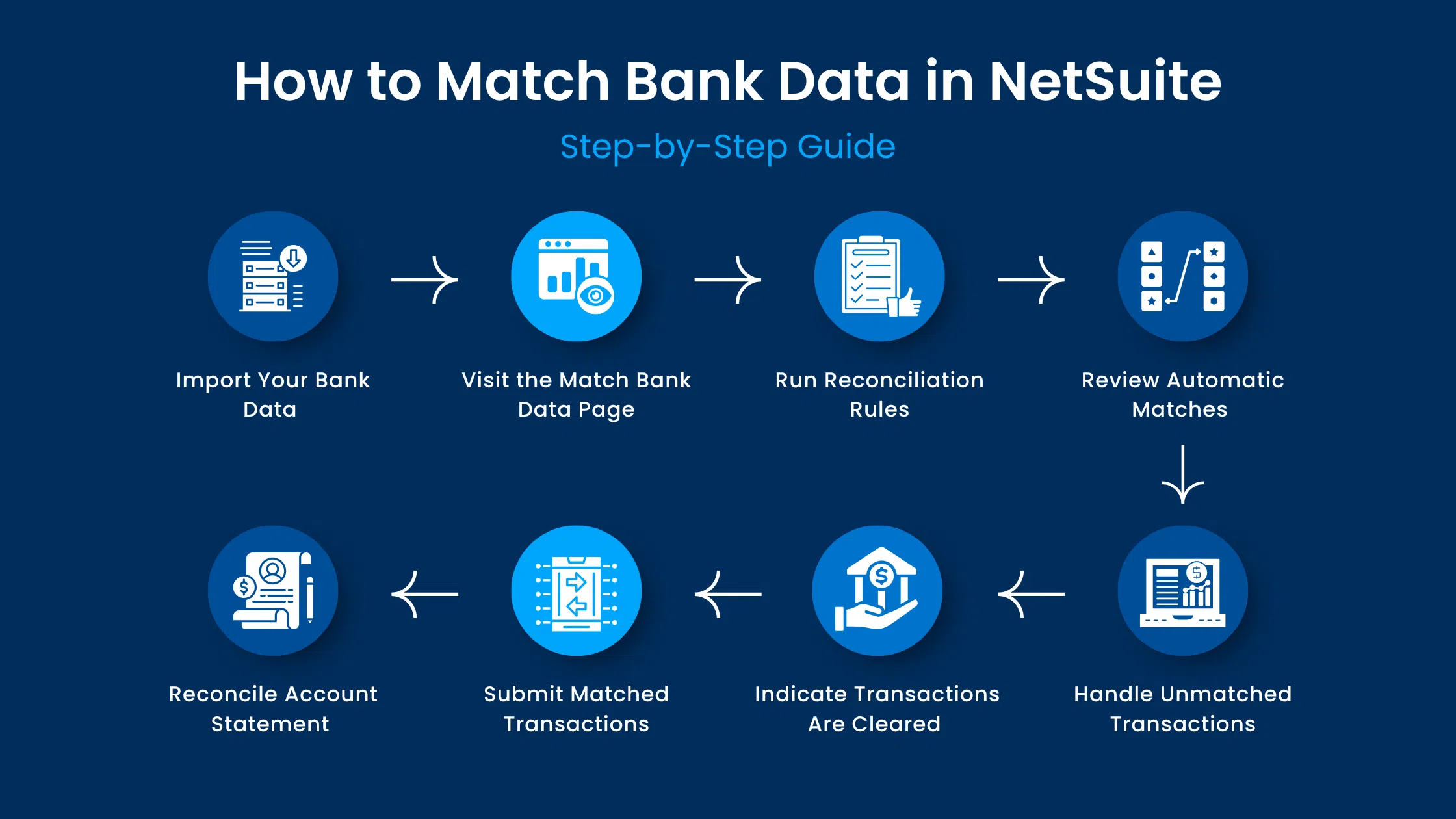
Step 1: Import Your Bank Data
Start by uploading your bank statement file to NetSuite. Go to Transactions > Bank > Bank Feeds and import your file in the format the system will accept (OFX, CSV, or direct bank feed). Ensure the import has finished before you try to match.
Step 2: Visit the Match Bank Data Page
Go to Transactions > Bank > Match bank Data and choose your bank account from the drop-down. NetSuite automatically populates:
- Bank Balance
- Balance As Of (statement date)
- Subsidiary information (if applicable)
Step 3: Run Reconciliation Rules
Its Intuitive Transaction Matching engine will auto-run system and user-defined rules against your imported bank lines, thereby matching them with your account transactions. This co-occurs with the processing of data.
Step 4: Review Automatic Matches
Review the transaction groups matched on the “Review” subtab. Verify each match is accurate by checking:
- Transaction amounts match exactly
- Transaction descriptions align
- Dates are reasonable
- Reference numbers correspond correctly.
Step 5: Handle Unmatched Transactions
For transactions the system couldn’t automatically match:
- Filter the “To Be Matched” grid by Date, Amount, or Description
- Manually select matching transaction pairs
- Double-check and make sure before you choose.
- Document any discrepancies or exceptional circumstances.
Step 6: Indicate Transactions Are Cleared
Transactions that are part of an account but not yet reflected by the bank (e.g., deposits in transit, outstanding checks) should be designated “cleared pending submission.”
Step 7: Submit Matched Transactions
When all the transactions are matched or cleared, click on the submit button. NetSuite validates your matches before submission.
Step 8: Reconcile Account Statement
Go to Reconcile Account Statement, fill in your Bank statement ending balance. Choose all transactions that reconciled the bank statement. At zero difference, your reconciliation is ready and automatically posted.
Pro Tips for Successful Bank Matching
Create custom rules for recurring transactions: If there are payments displayed with the same patterns frequently (subscriptions, payroll, vendor invoices), create customized reconciliation rules. Manual matching in future rounds is thereby greatly diminished.
Use filters strategically: With high transactions, filters should be used to filter by date or total amount of transaction and/or description to suppress the run time of data to hit detection service and not cause any performance issue.
Validate before submitting: Don’t forget to verify the matches before submitting. A mistaken match can snowball through your financials.
Document exceptions: Record uncommon or tough-looking pairings for your audit trail and to inform any future rule updates.
Common Reconciliation Challenges and Solutions
Challenge: High Transaction Volumes
Split transactions into smaller packages rather than one big run to keep the system’s performance.
Challenge: Timing Differences
Often, bank deposits and payments, when they appear in your bank account, are different than what you record internally. Most of these are matched by NetSuite’s intelligent matching but use the “match within X days” rule for differences.
Challenge: Multiple Payment Channels
Consolidate payment processor data before importing—uniform description and reference format to allow matching rules to work in the same way across channels.
Challenge: Complex Fee Structures
Write an auto-create rule that creates an expense cash transaction for the bank fee AI to avoid manual entries.
If you’ve acquired these challenges despite having done so, then working with NetSuite experts can make matching more advanced for your level of business complexity.
Why Work with LST Consultancy for Your NetSuite Implementation
Match Bank Data in NetSuite is powerful, but you really must know your way around it. LST Consultancy assists finance teams in enhancing the full use of reconciliations within NetSuite.
Our NetSuite specialists have helped 100+ businesses to slash reconciliation time by 75–85%, remove congestion with custom rules, train teams in best practice, and incorporate Match Bank Data right across the financial close.
Whether implementing or streamlining your NetSuite, LST Consultancy offers expert configuration, custom rule building, staff training, process improvement, and ongoing optimization.
Your finance team should be working on strategy — not a spreadsheet.
Take the Next Step
Are you ready to revolutionize your bank reconciliation? An automatic match can literally return 40+ hours per month to your finance team—and that time is better spent analyzing and planning.
Manual reconciliation should never slow down your financial close. Get a free consultation today and start automating your process.
LST Consulting is a top certified NetSuite provider that specializes in cash management, account reconciliation, and financial process automation. We go to work behind the scenes so finance teams can do more with less.